Create a Character
Anyone can create a character in Deskie. Pick a model, give it a personality, choose a voice, and you have a companion that others can chat with — or keep it just for yourself.
Click Create on the homepage and choose Character to open the editor.
Pick a Model
The Model tab is where you choose your character's appearance. Characters support Live2D, 3D, and VRM models. Pick from the published model library and choose one you like.
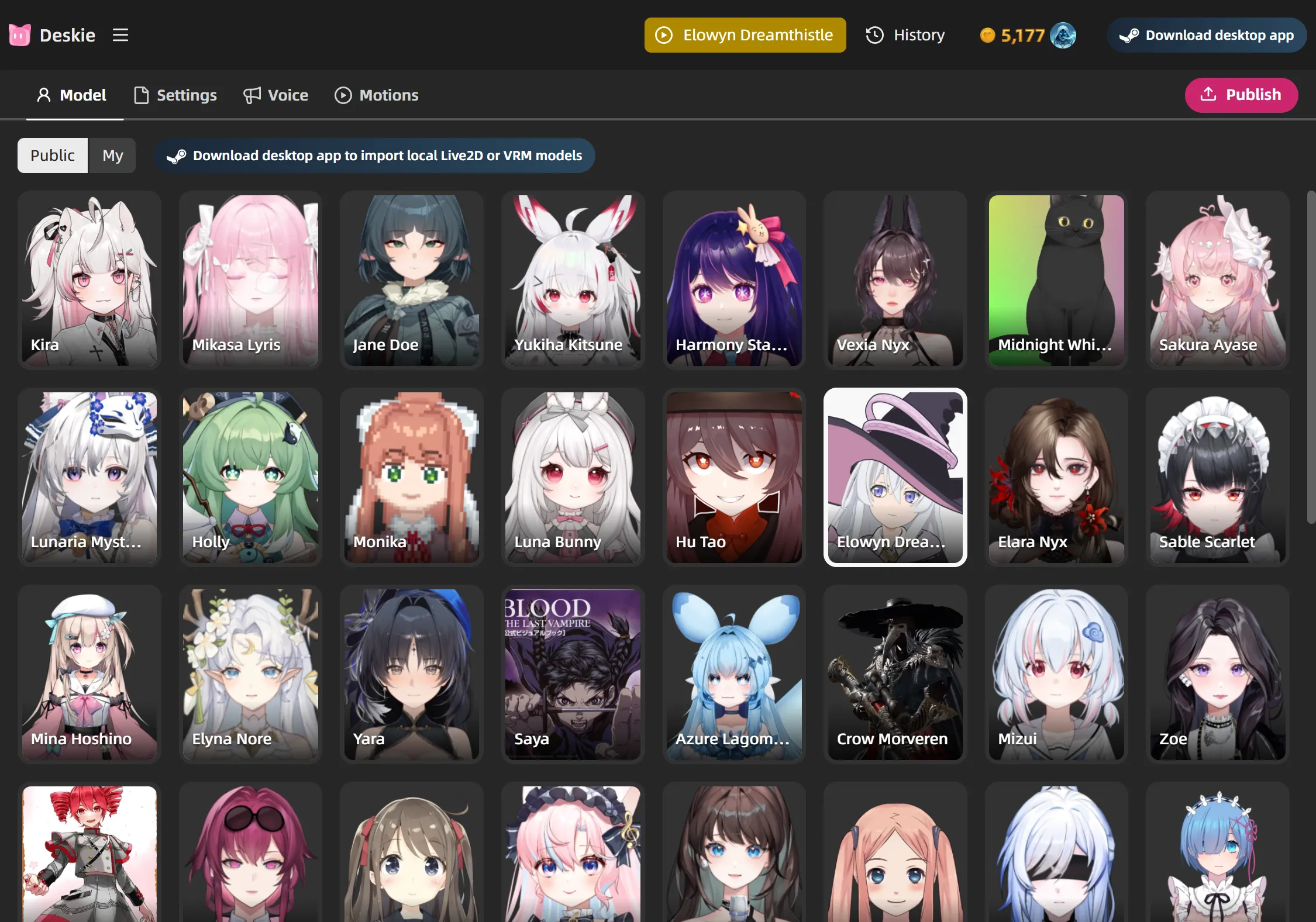
When you pick a model from the library, the editor auto-fills defaults for name, voice, and personality if the character is still empty — a quick starting point you can tweak from there.
The editor preview shows your character as they'll appear in conversation. Drag the speech bubble and chat input to place them where they won't cover the model — especially useful for desktop companion mode. For 3D models, you can also rotate to get the angle right.
Define the Personality
The Settings tab is where your character comes to life. Fill in:
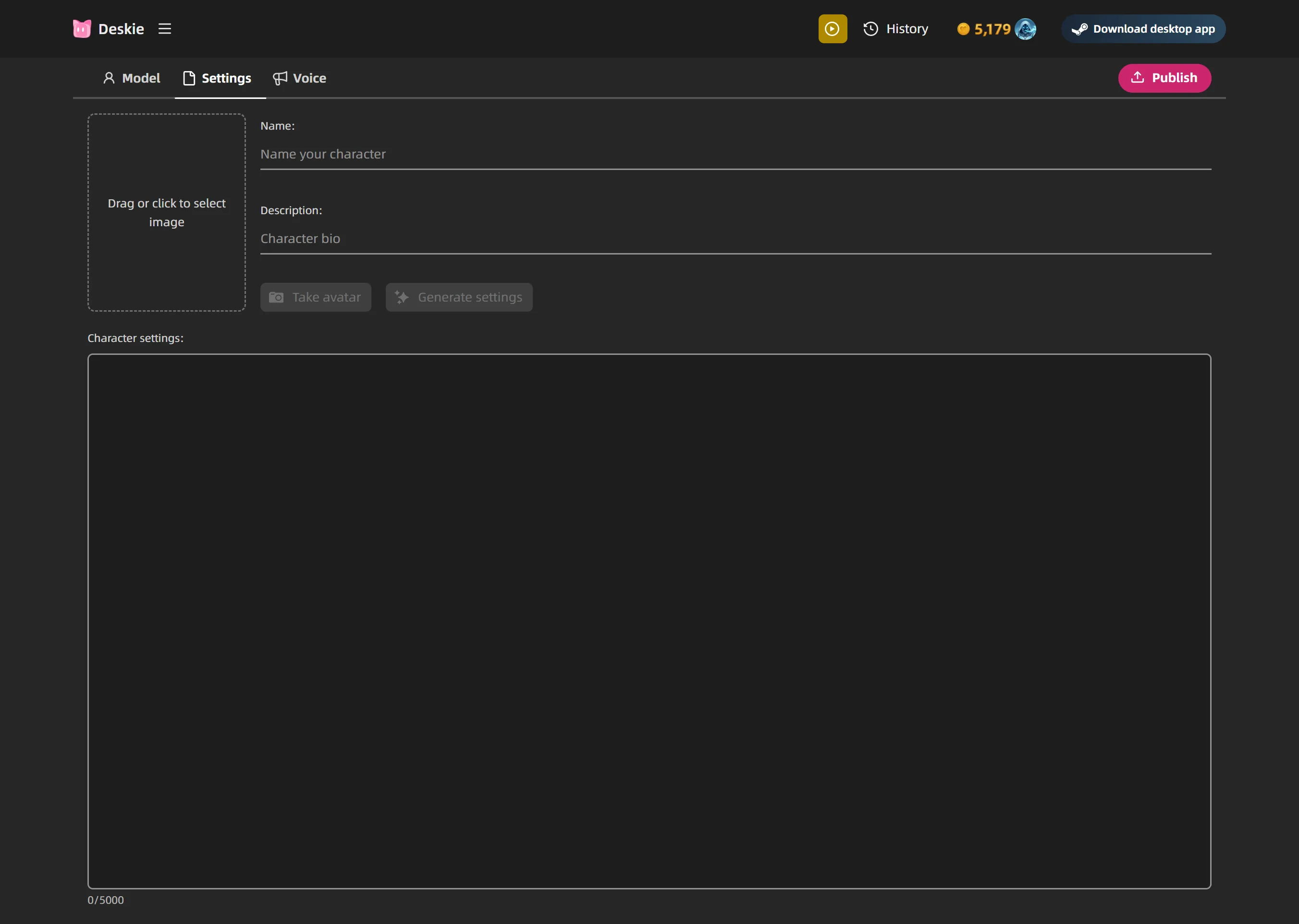
- Name and Description — shown on the character card
- Portrait — upload an image, or use Take Avatar to auto-detect the face and capture a portrait from the model
- Character Settings — the personality prompt. This is the most important field. Here's what makes a good one:
Show behavior, not labels. Instead of listing adjectives ("cheerful, kind, brave"), describe how the character acts. "She laughs too loud at her own jokes and fills every silence before it gets awkward" tells the AI far more than "cheerful" ever could.
Give them a contradiction. The gap between who they appear to be and who they really are is what makes a character feel real. "Outwardly cold and dismissive, but keeps a box of handwritten letters she's never sent" is more interesting than just "cold." Real people are messy — your character should be too.
Write specific details, not vague traits. "Loves the sound of rain on a window and the smell of old bookstores" beats "likes quiet things." "Hates being called cute — will go silent for a full minute if you try" beats "easily embarrassed." Concrete details give the AI material to reference naturally.
Define their speech patterns. Do they trail off mid-sentence? Use old-fashioned words? Swear when nervous? Speak in short clipped phrases or long poetic tangents? The way a character talks is the single biggest thing that separates them from everyone else.
Include emotional triggers. What makes them angry? What topic makes them go quiet? What's the one compliment that actually gets through their guard? These create moments in conversation where the character suddenly feels alive.
Add backstory that explains behavior. You don't need a novel — just a few key memories. "She stopped trusting easily after her best friend leaked her diary in middle school" gives the AI a reason for why she keeps people at arm's length, and something to reveal when the relationship deepens.
Describe how they treat different people. A character who's rude to strangers but fiercely protective of friends feels three-dimensional. Tell the AI how the character acts when they're guarded versus when they trust someone.
Say what they'd never do. Negative space is powerful. "She never apologizes first, even when she knows she's wrong" or "He would rather lie than admit he's scared" tells the AI where the character's limits are — and makes the moments they break those rules hit harder.
Choose a Voice
The Voice tab shows a library of voices with preview playback. Filter by gender, search by name, and listen to samples.
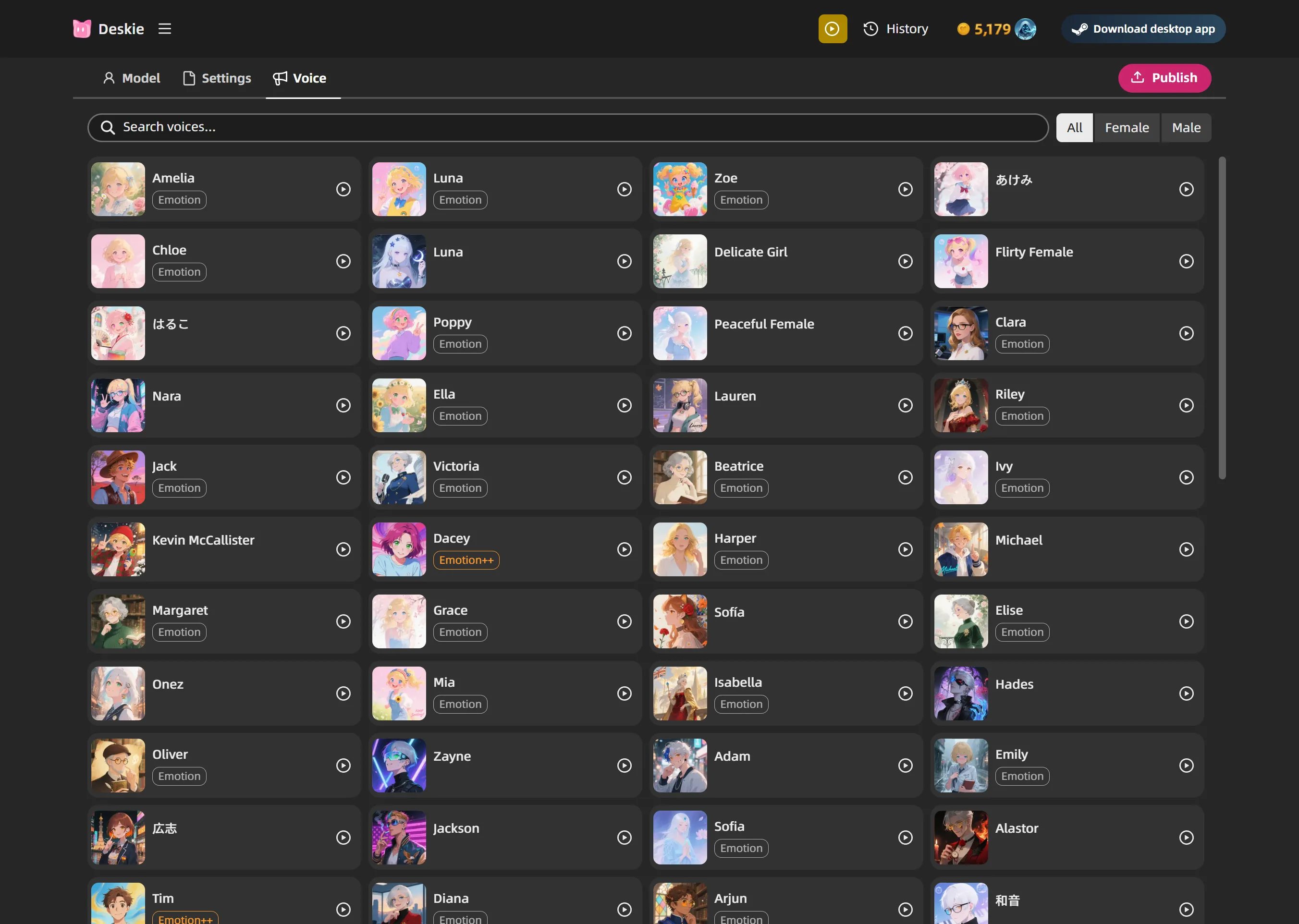
Each voice has an emotion level — Emotion, Emotion+, or Emotion++ — indicating how expressive the voice delivery is. Higher emotion means more dramatic shifts in tone during conversation.
When you use Generate Settings, the AI also auto-matches a voice to fit the character's appearance and personality.
Name Motions and Expressions
If your model supports it, the Motions and Expressions tabs let you name each animation. Give them short, meaningful names like "dance", "wave", "blush" — the AI reads these names and triggers the right animation based on conversation context. Click any motion or expression to preview it live.
Mark an expression as persistent to keep it always on — useful if you want an expression to stay visible regardless of conversation context. Mark one as disabled to prevent the AI from ever triggering it — handy for hiding unwanted animations like a Live2D watermark.